How to watch a video with subtitles in your browser
Watch a video in your browser without downloading it, and turn on subtitles. Add your own subtitle file, or find one online, and fix the timing.
Not translated yet — showing English.
Steps in this guide (7)
You can watch a video straight from your files. You do not need to download it first. You can also turn on subtitles, add your own, and fix the timing if the words come too early or too late.
Before you start
- You need to be signed in.
- The video must be fully downloaded into your files. Until then you cannot play it.
- The first time anyone plays a video, it needs a short wait while it is made ready for your browser.
Step 1 — Open the video
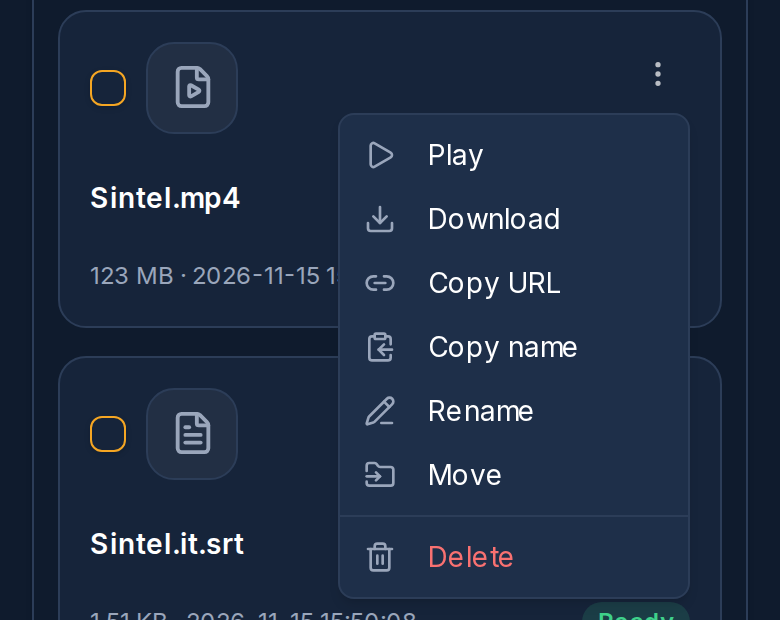
Open the Files tab (the page icon at the top) and find the video. Tap the ⋮ button next to it and choose Play.
If the menu has no Play, the video is still downloading, or the file is not a video. If it is still downloading, wait until it finishes.
Step 2 — Wait for the start
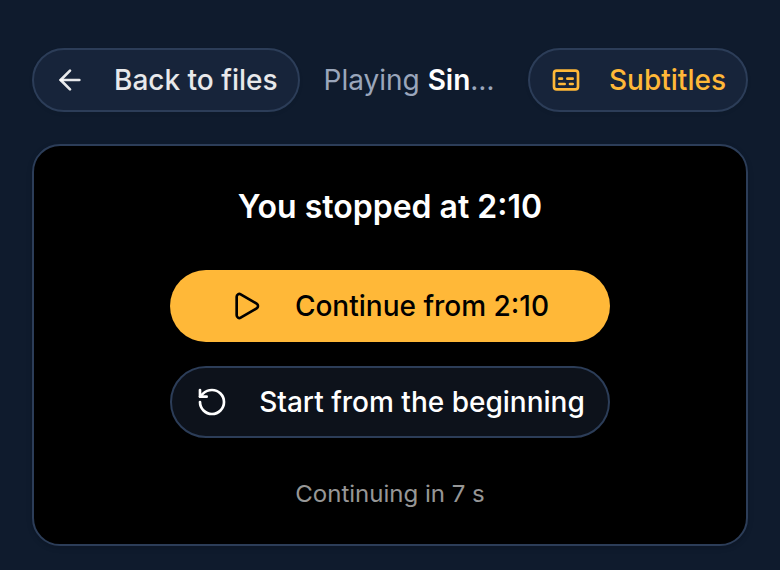
You will see Preparing playback… for a moment. If the video was played before, it starts quickly. If not, you wait only until the start of the video is ready. You can then watch while the rest is prepared.
If you watched this video before, you see You stopped at and the time. Choose Continue from to go back to your place, or Start from the beginning. If you turned on auto-play, it shows Continuing in a few seconds and continues by itself. You can continue on another device too.
Step 3 — Choose the audio
Some videos have more than one audio track, for example two languages. Open the player's settings (the gear) and choose Audio, then Track, then pick the one you want. If there is no Audio in the menu, the video has only one audio track.
Step 4 — Turn on subtitles
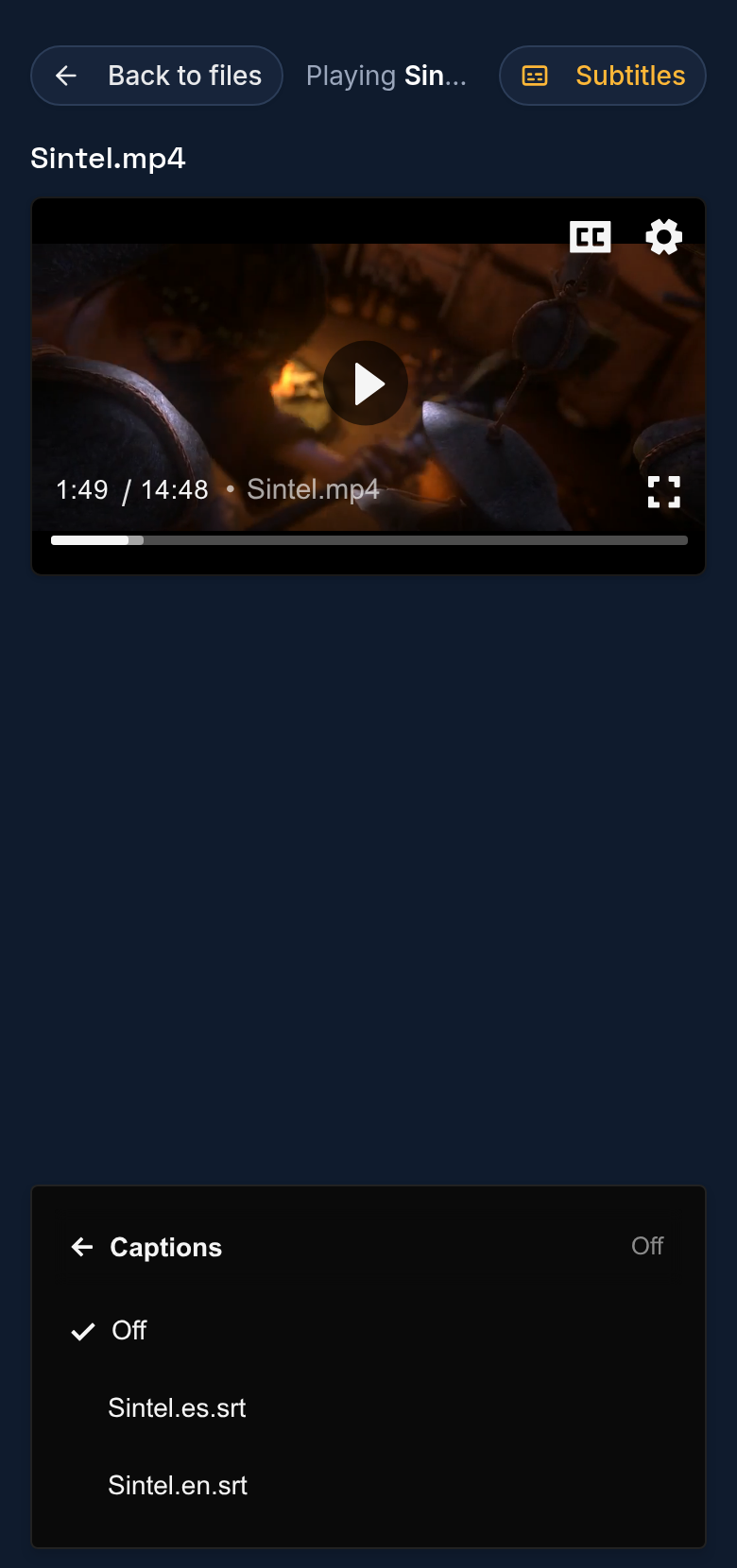
Open the player's settings (the gear) and choose Captions. Pick a subtitle from the list. Choose Off to hide them.
Subtitles that are inside the video file show in the list for everyone who plays it. They may take a moment to appear after the video starts. They stay off until you choose one.
If there is no Captions in the menu, the video has no subtitles yet. Go to Step 5.
Step 5 — Add a subtitle
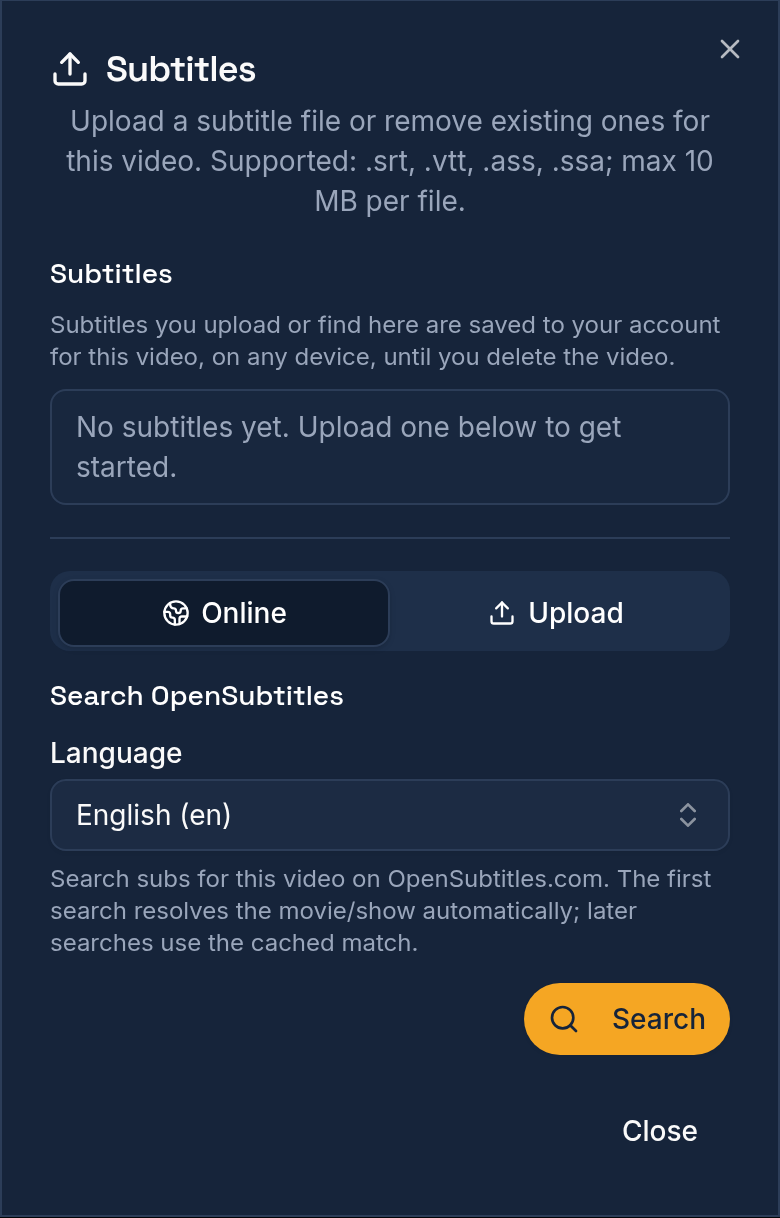
If there are no subtitles, or you want another language, press Subtitles above the player. A window opens with two tabs:
- Online: choose a Language and press Search. Press + next to the one you want.
- Upload: choose your own subtitle file (.srt, .vtt, .ass or .ssa, up to 10 MB), pick its Language, and press Upload.
A subtitle you add is saved to your account for this video, on any device. Only you see it. Go back to Captions in the player and pick it. Next time, it may come on by itself.
To remove a subtitle you added, press the bin icon next to it, then Confirm. Subtitles marked In video cannot be removed.
Step 6 — Fix the timing
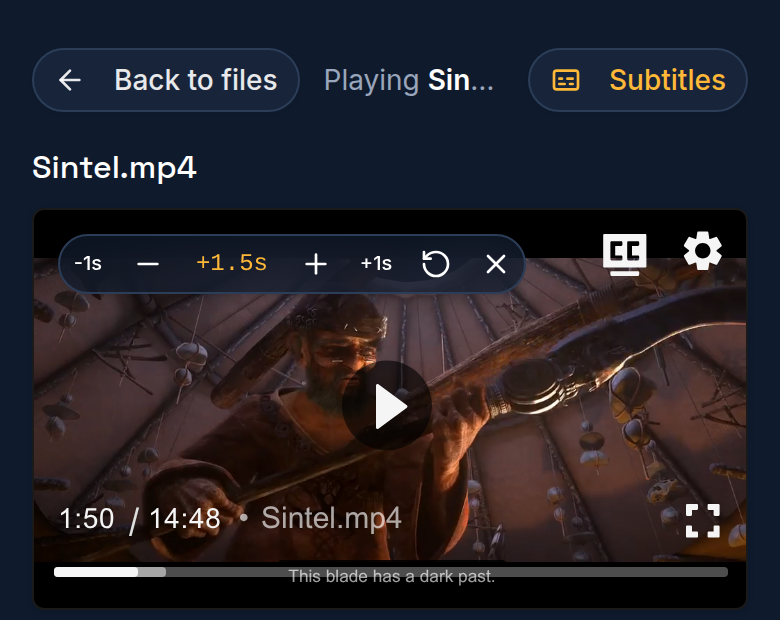
When a subtitle is on, a Sync button shows on the video. If you do not see it, tap the video to show the controls. Tap Sync. Press -1s or − to show the words earlier. Press +1s or + to show them later. The button with a round arrow puts it back to zero.
For a subtitle you added, the change is saved for next time. For a subtitle inside the video, the change lasts only while you watch now.
If something goes wrong
- The video gets stuck on Preparing playback…. The player tries to recover by itself. If it cannot, after about half a minute it shows Reopen. Press it. You can then choose to continue from where you stopped.
- You see "Still downloading". The video has not finished downloading. Press Try again later.
- There are no subtitles inside the video. Only plain-text subtitles are taken from a video. Picture-based subtitles are skipped. Search for one or upload your own.
- You see "Can't play this video". The file may be damaged, or in a format the browser cannot play. You can still download it.
- You see a message that you reached your video-play limit. Each account can prepare only a limited number of new videos at the same time. Wait a while and try again, or contact support.
Share this guide
More guides
How to download a whole folder as a zip file
Download a whole folder as one zip file in a few taps. This short guide shows each step, on your phone or on a computer.
How to add a magnet link and get your files
Paste a magnet link or choose a .torrent file, then download or play your files. Step by step, with the exact buttons to tap.