How to download a whole folder as a zip file
Download a whole folder as one zip file in a few taps. This short guide shows each step, on your phone or on a computer.
Not translated yet — showing English.
Steps in this guide (7)
You have a folder of files. You want all of them at once. This guide shows how to download the folder as one zip file.
Before you start: sign in to your account. Files that are not ready yet are left out of the zip, and you will see which ones.
Step 1 — Open your files
Sign in and open the Files tab at the top of the page. On a phone, this tab shows only a file icon. Find the folder you want.
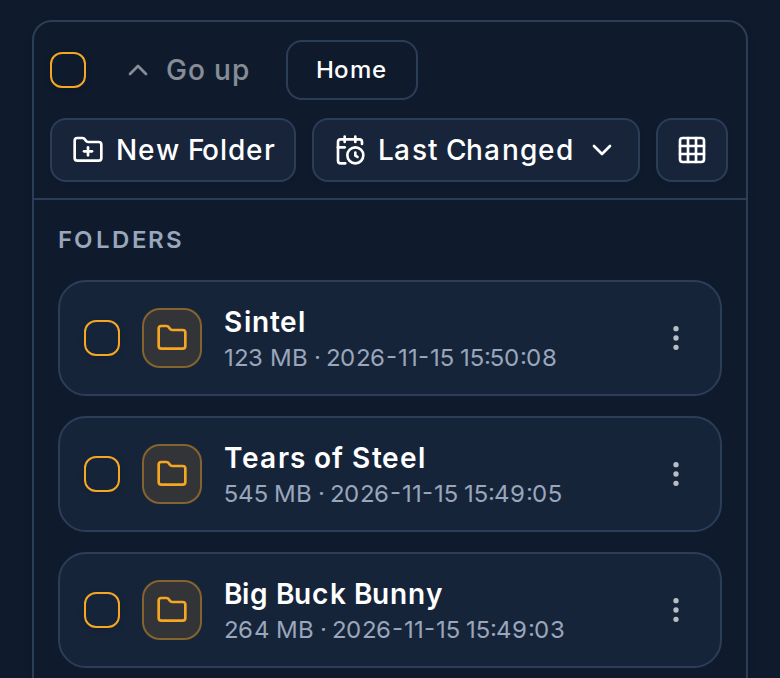
Step 2 — Tap Download as Zip
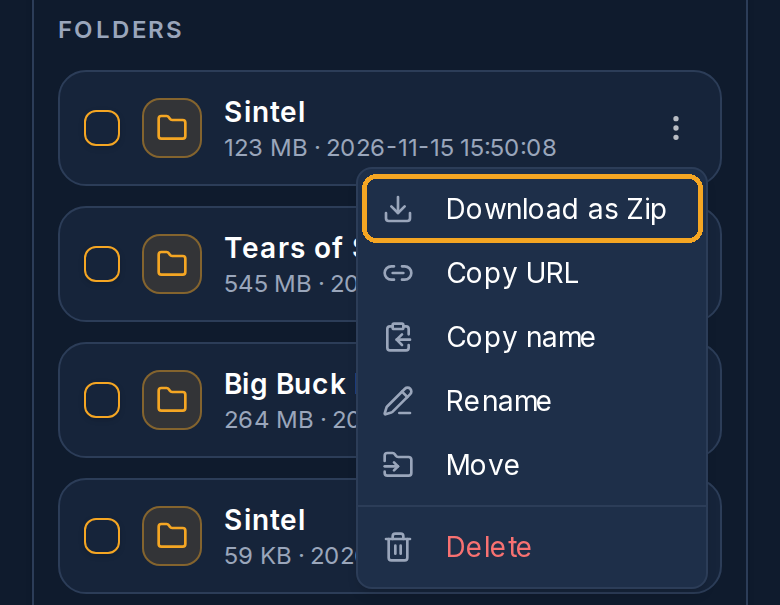
Tap the three-dot button (⋮) on the folder. Then tap Download as Zip.
Step 3 — Let the download start
Most of the time you will see Zip download started and Your download will begin shortly. Your browser then downloads the zip like any other file.
Sometimes a window called Download: and the folder name opens instead. This happens when some files are left out, or when a very large folder comes in more than one part. The window shows the progress of each part. Keep it open until every part says Done. If you close it early, the download stops. On a phone, keep the screen on and stay on this page until it finishes.
If a part shows an error in red, tap Retry failed.
Step 4 — Get the files that were left out
If some files are not ready yet, the window shows a box like 2 files excluded with their names. Note the names. Close the window and wait a while.
Later, tap Download as Zip on the folder again. Or tick only the files that were left out and download them. If they are still left out, try again later.
Step 5 — Open the zip
When the download finishes, find the zip file in your downloads. Open it with any app that can open zip files.
Download only some items
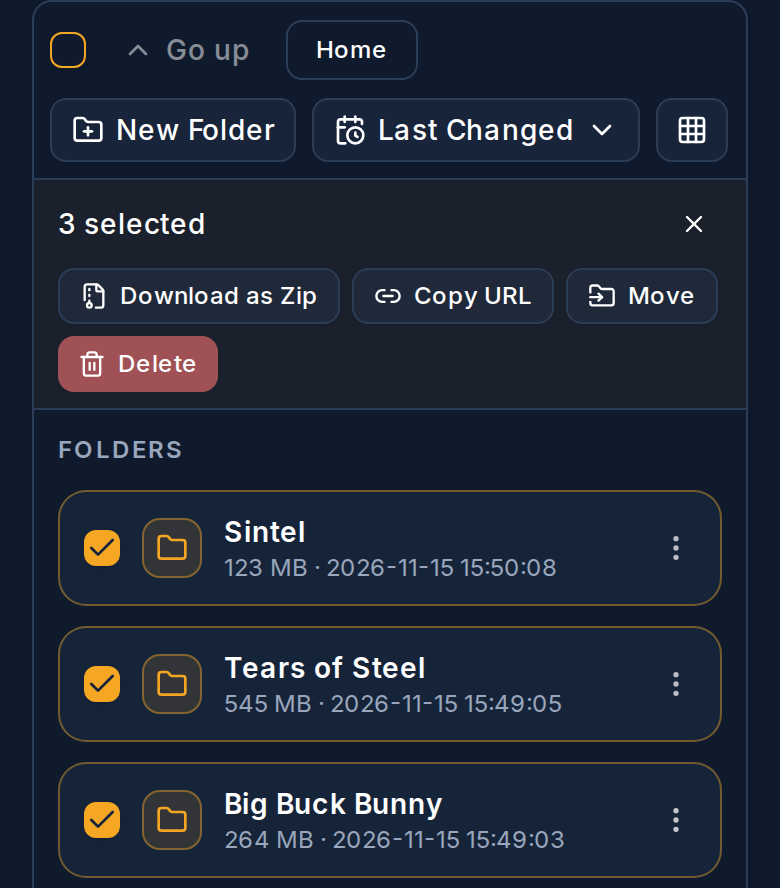
You can also pick a few files or folders. Tick the box on each one. A bar shows how many you selected. Tap Download as Zip in that bar. If you tick only one file, it downloads as that file, not as a zip.
If something goes wrong
- You see "No downloadable files were available." None of the files are ready yet. Try again later.
- A copied link stopped working. If you saved a link with Copy URL, it stops working after a while. Download the folder again from your files.
- The zip has a different name. Some download apps ignore the name of the zip and save it under another name. The files inside are the same. You can rename the zip.
Share this guide
More guides

How to watch a video with subtitles in your browser
Watch a video in your browser without downloading it, and turn on subtitles. Add your own subtitle file, or find one online, and fix the timing.

How to add a magnet link and get your files
Paste a magnet link or choose a .torrent file, then download or play your files. Step by step, with the exact buttons to tap.