How to add a magnet link and get your files
Paste a magnet link or choose a .torrent file, then download or play your files. Step by step, with the exact buttons to tap.
Not translated yet — showing English.
Steps in this guide (7)
You have a magnet link or a .torrent file. This guide shows how to add it, follow its progress, and open your files.
Before you start
- Sign in to your account.
- Have your magnet link or .torrent file ready.
- Only add content you are allowed to download.
- Check the Storage and Tasks bars near the top of the page. If either is full, your new download waits until there is room.
Step 1: Copy your magnet link
Find the magnet link on the page where you got it, and copy it. If you have a .torrent file instead, save it on your phone or computer.

Step 2: Open "Add a download"
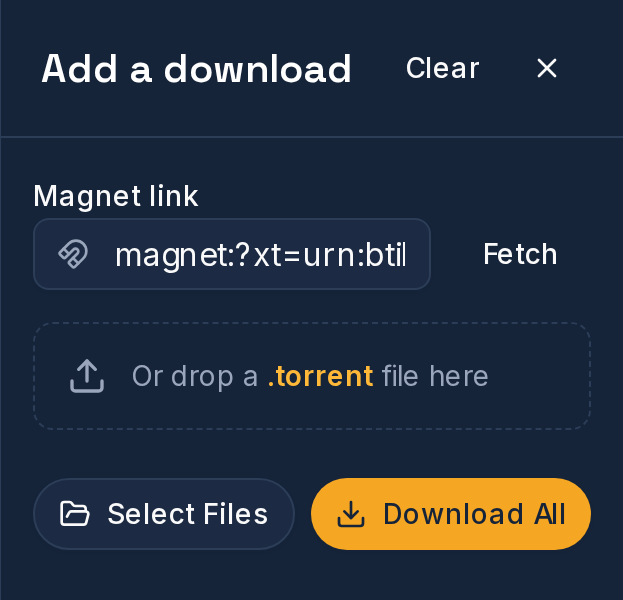
Tap the + button at the top of the page. On a computer it says Add Files & Links. A panel called Add a download opens.

Step 3: Paste the link or choose the file
Paste your magnet link into the Magnet link box. It says Paste a download link.
Have a .torrent file? Tap Or drop a .torrent file here and choose the file.
Step 4: Start the download
If a file list opens straight away, skip to the file list below.
Otherwise you see two buttons:
- Download All gets everything.
- Select Files shows the list of files inside.
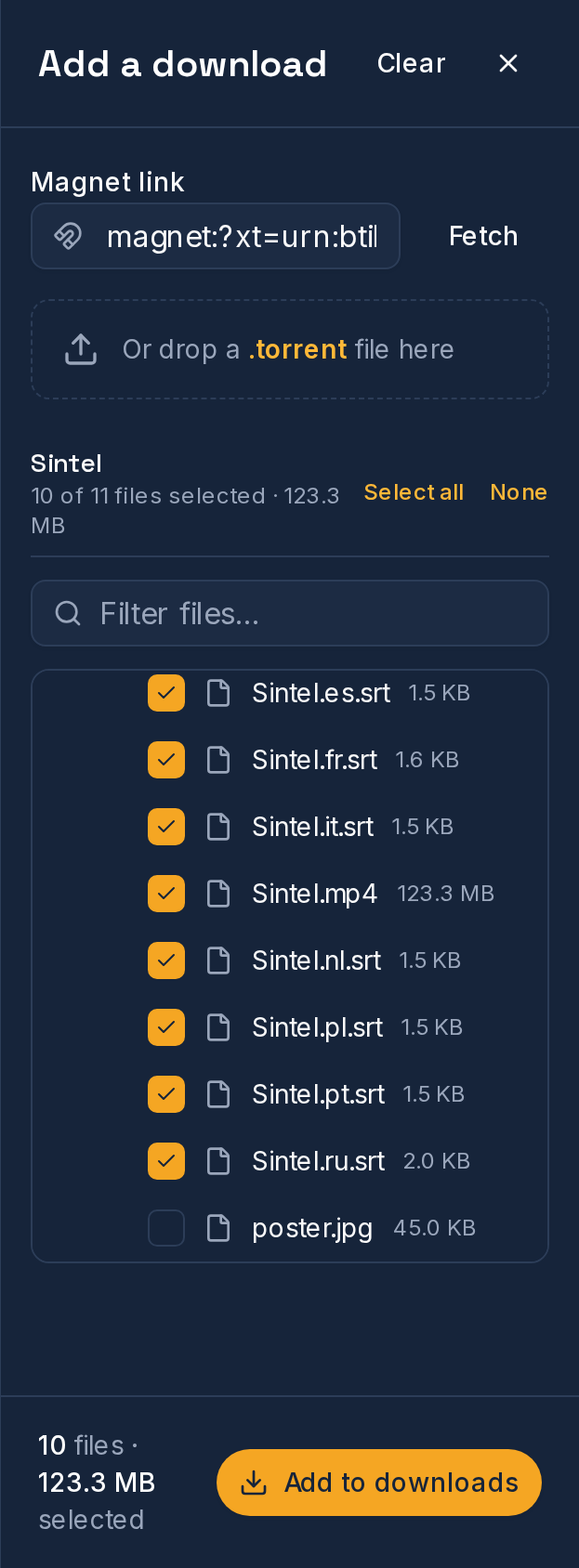
In the file list, all files are ticked. Untick the ones you do not want, then tap Add to downloads.
You will see Task Added. Your download task has been queued.
Tip: to see the file list every time, open the account menu at the top right and tap Setting. Under Downloads, turn on Pick files before downloading.
Step 5: Follow the progress
Open the Tasks tab. On a phone it is the clipboard icon at the top. Your download is under Active. Its progress updates by itself. You do not need to refresh the page.
Step 6: Open your files
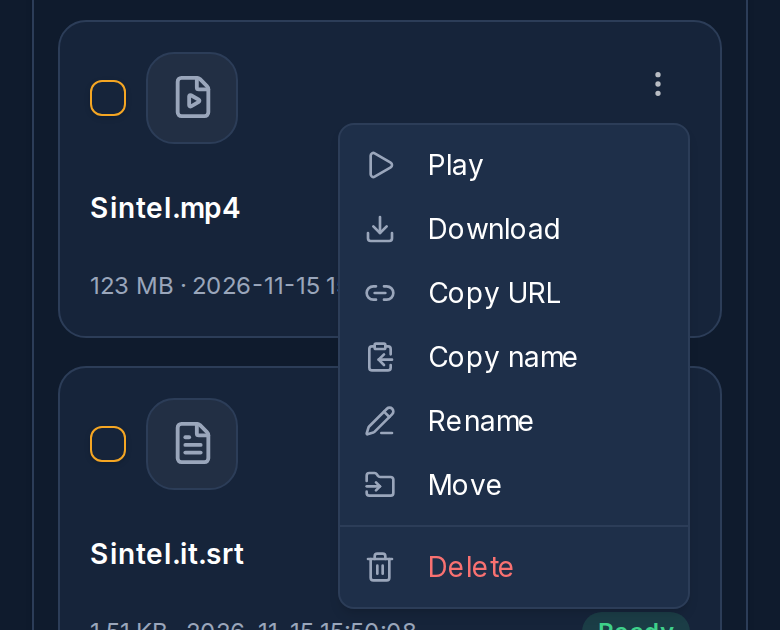
Your files show in the Files tab. On a phone it is the page icon next to the Tasks icon. If you see a folder, open it first. When a file is ready, tap the three-dot menu next to it. Choose Download to save it, or Play to watch a video in your browser.
If something goes wrong
- The task shows Queued and does not start. Your Tasks or Storage bar may be full. The task starts by itself when another task finishes or you free some space.
- You see a message that it is banned, or the task shows Banned. This content is not allowed. It cannot be downloaded.
- The task shows Timed out. It ran longer than your task time limit and was stopped. If it had already downloaded any files, they were removed from your Files list. You can add it again.
- The task is slow. Leave it in your list. The system tries stalled downloads again by itself.
Share this guide
More guides

How to watch a video with subtitles in your browser
Watch a video in your browser without downloading it, and turn on subtitles. Add your own subtitle file, or find one online, and fix the timing.
How to download a whole folder as a zip file
Download a whole folder as one zip file in a few taps. This short guide shows each step, on your phone or on a computer.